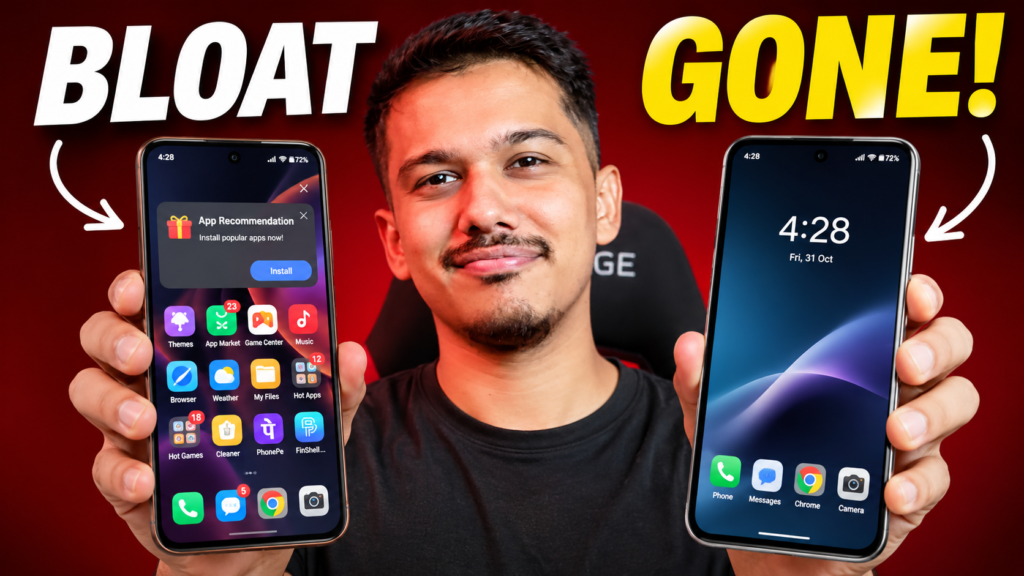
Remove Android Bloatware Using AI Agents (No Root Required) – Copy-Paste AI Prompt
Want to remove unwanted pre-installed apps (bloatware) from your Android smartphone without rooting your device?
What if you could simply ask an AI Agent to analyse your Android phone, identify unnecessary system apps, and uninstall them automatically using ADB commands?
With AI coding agents like Google Antigravity, OpenAI Codex, and Claude Code, you can do exactly that!
In this tutorial, I’m sharing a powerful copy-paste AI prompt that turns your AI Agent into an Android debloating assistant. It can detect your device manufacturer, analyse installed packages, recommend safe-to-remove apps, and uninstall the packages you approve — all without root access.
The best part? It also creates a rollback script to help you restore the removed applications if needed.
What You Need Before Starting
Before using this prompt, make sure you have the following:
- An Android smartphone.
- A Windows PC, laptop, or computer.
- USB Debugging enabled on your Android phone.
- An AI coding agent such as Antigravity, OpenAI Codex, or Claude Code.
Important: Connect your Android phone to your computer using a USB cable and allow USB Debugging when the authorization prompt appears on your phone.
AI Agents Compatible With This Prompt
You can use this prompt with almost any AI coding agent that supports terminal access and can execute commands.
- Google Antigravity – AI-powered development environment.
- OpenAI Codex – AI coding agent capable of working with your terminal.
- Claude Code – Anthropic’s terminal-based AI coding agent.
You don’t need a separate Android debloating application. The AI Agent will use ADB directly through your computer’s terminal.
Copy-Paste Android Debloating AI Prompt
Copy the complete prompt below and paste it into your preferred AI Agent.
Make sure your Android phone is connected through USB Debugging before running the prompt.
Your AI Debloating Prompt
Act as an Android Systems Engineer. I am connecting an Android device via USB Debugging. Your objective is to safely debloat it using the terminal without root access.

Follow this execution protocol step-by-step:

1. Run `adb devices` in the terminal to verify the connection status.
2. Run `adb shell getprop ro.product.manufacturer` to identify the device manufacturer and OS skin.
3. Retrieve all installed packages using `adb shell pm list packages`.
4. Cross-reference the installed packages with known safe-to-remove OEM and carrier bloatware specific to the detected manufacturer.
5. Present a categorized list of recommended packages for removal to me for review, briefly explaining what each package does.
6. Upon my approval, execute `adb shell pm uninstall -k --user 0 <package_name>` for each approved package directly in the terminal.
7. Automatically create a `rollback.sh` file in the current directory containing the `adb shell cmd package install-existing <package_name>` commands for every uninstalled app, ensuring an immediate recovery method is available.

Do not remove any system-critical telecom, UI, camera, or security frameworks. Stop and wait for my confirmation at step 5 before executing any uninstallations.
How Does This AI Prompt Work?
The prompt instructs your AI Agent to follow a controlled debloating process rather than randomly uninstalling Android applications.
Here’s what happens:
Step 1: Detect Your Android Device
The AI checks whether your phone is connected through ADB and identifies the device manufacturer.
Step 2: Analyse Installed Applications
It retrieves the installed Android package list and analyses the applications to identify potential bloatware.
Step 3: Recommend Apps for Removal
The AI presents a categorized list of potentially removable applications and explains their purpose.
Step 4: Review and Approve
You get to review the recommended packages. The AI must wait for your confirmation before uninstalling anything.
Step 5: Remove Selected Bloatware
After your approval, the AI executes ADB commands to remove the selected applications for the current Android user without requiring root access.
Step 6: Generate a Rollback Script
The AI creates a rollback.sh file containing commands to restore the removed packages where Android still retains them.
Is It Safe to Remove Android Bloatware Without Root?
Generally, using ADB to uninstall unwanted pre-installed applications for the current Android user is safer than modifying the system partition or rooting your device.
However, you should still be careful.
- Never uninstall packages whose purpose you don’t understand.
- Avoid removing telecom, launcher, camera, security, and system UI components.
- Keep a backup of important data.
- Review every package before approving its removal.
- Keep the generated rollback script somewhere safe.
Important: The rollback script can restore packages only if Android still has their installation package available. It is not a guaranteed recovery method for every application or device.
Also, some OEM applications may have dependencies, and removing them can affect certain phone features.
Important: What Does ADB Debloating Actually Do?
The command used in this prompt is:
adb shell pm uninstall -k --user 0 <package_name>
This removes the selected application for Android user 0 without modifying the system partition.
It does not necessarily permanently delete the application’s APK from the system partition. This is why some removed pre-installed applications can be restored using:
adb shell cmd package install-existing <package_name>
No root access is required for this method.
Final Words
AI Agents are making Android customization and automation much easier. Instead of manually researching package names and typing dozens of ADB commands, you can let an AI Agent analyse your device and guide you through the debloating process.
Try this prompt with Antigravity, OpenAI Codex, or Claude Code and see how much unnecessary software you can safely remove from your Android phone!
If you found this tutorial useful, subscribe to EXPOSUREEE for more Android tips, AI tools, automation tutorials, and technology experiments.
Disclaimer: This tutorial is provided for educational purposes. Package safety varies by device manufacturer, Android version, region, and firmware. AI-generated recommendations are not guaranteed to be correct. Always verify packages independently and approve removals carefully.